
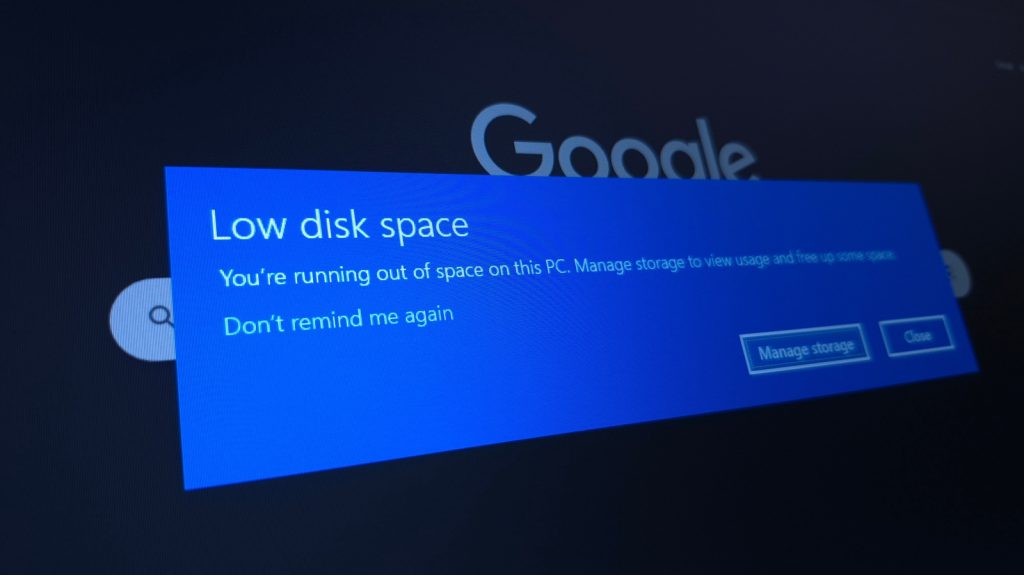
Many PC users still apply legacy hard drive rules to modern solid-state drives, assuming they must leave a massive chunk of their storage empty. However, because solid-state drives rely on flash memory rather than spinning magnetic platters, space management works quite differently on modern hardware.
Direct Summary: Solid-state drives (SSDs) require roughly 10% to 15% of empty capacity to maintain optimal performance and longevity. While non-system secondary drives can function safely with 5% free space, system drives containing operating systems like Windows or macOS need additional headroom for background maintenance, wear leveling, virtual memory, and software updates.
| Drive Usage Type | Recommended Free Space | Primary Reason |
|---|---|---|
| System Drive (OS Installed) | 10% – 15% | OS updates, system cache, page files, and background wear leveling |
| Secondary Storage Drive | 5% – 10% | Infrequent file writes, media storage, and game archives |
| Nearly Full Drive (< 5%) | Not Recommended | Triggers write amplification, slows garbage collection, reduces drive lifespan |
How SSDs Handle Background Data Maintenance
Unlike traditional hard disk drives, solid-state drives cannot directly overwrite existing data. Flash storage writes data in small units called pages but erases data in larger units called blocks. When modifying or deleting files, the drive must copy valid pages to a clean block before wiping the original block entirely.
This internal cleanup process is known as garbage collection. When an SSD runs low on available capacity, finding empty blocks for this shuffling process becomes difficult, leading to noticeable performance throttling during write operations.
The Role of Wear Leveling and Overprovisioning
NAND flash memory cells have a finite number of Program/Erase (P/E) cycles before they degrade. To prevent specific cells from wearing out prematurely, the drive controller uses wear leveling to distribute write operations evenly across all available storage cells. Without sufficient free space, the controller is forced to repeatedly write to the same small pool of open cells.
Most manufacturers incorporate factory-set overprovisioning—a reserved portion of physical memory dedicated solely to controller operations that remains invisible to the operating system. While overprovisioning provides a built-in safety net, keeping user-accessible space open ensures the drive controller maintains maximum operational efficiency.
Effective Methods to Reclaim SSD Storage Space
Maintaining adequate headroom on your solid-state drive does not require drastic sacrifices. Windows users can leverage automated maintenance tools like Storage Sense or the built-in Disk Cleanup utility to eliminate temporary system files and residual update data.
Practical storage management strategies include:
- Disable Hibernation: Turning off the Windows hibernation feature removes the large hiberfil.sys file from your system drive.
- Clear Application Caches: Web browsers, video editing software, and game launchers accumulate gigabytes of temporary cache files over time.
- Offload Inactive Data: Transfer large media libraries, raw video footage, and legacy games to external storage drives or cloud services.
Frequently Asked Questions
Will filling an SSD completely cause it to fail instantly?
Filling an SSD to maximum capacity will not immediately break the drive. However, it will severely degrade write speeds and accelerate cell wear over time as the drive controller struggles to execute garbage collection and wear leveling.
Do secondary SSDs need as much free space as system drives?
No, secondary storage drives used primarily for storing photos, movies, or installed games do not require as much free space. Leaving 5% to 10% open is usually sufficient, as these drives experience far fewer background write operations than an operating system drive.