
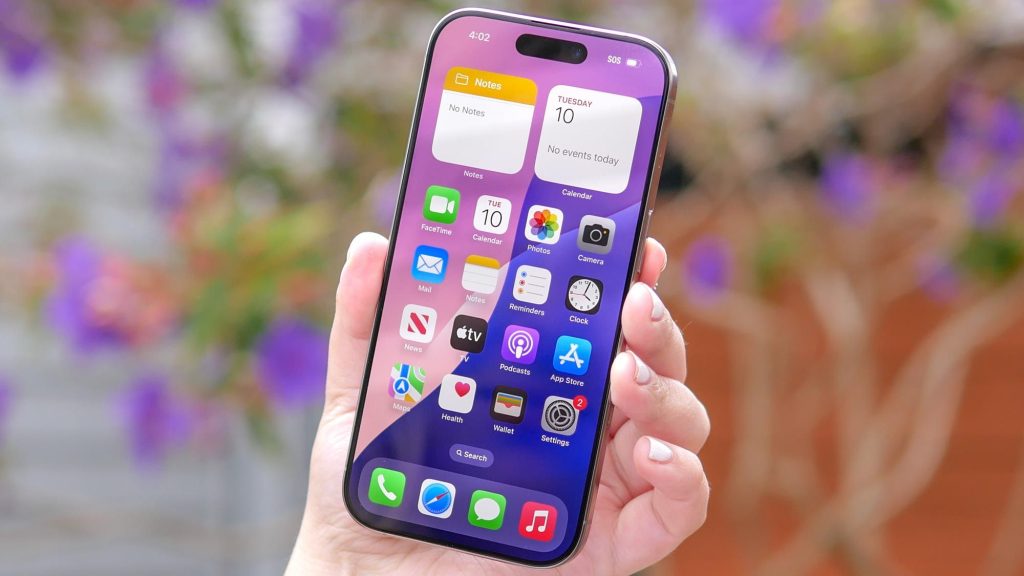
For most iPhone owners, the side-mounted Action Button serves as little more than a dedicated mute switch or a quick camera shutter launcher. That single-purpose limitation leaves high-end hardware largely underutilized throughout the day.
In iOS 27, Apple updates the Shortcuts app to let users map multiple utilities to the Action Button simultaneously. By grouping preferred quick actions into dedicated folders and integrating automated Focus Modes, iPhone users can turn a single physical button into a context-aware menu system that adapts to driving, working, or bedtime routines.
| Configuration Method | Trigger Mechanism | Example Actions | Ideal Application |
|---|---|---|---|
| Action Menu Folder | Manual Press | Flashlight, Voice Memo, Shazam | Instant access to top 3–5 daily utilities |
| Sleep Focus Trigger | Contextual Automation | Open Alarms, Dim Display | Bedtime and morning routines |
| Driving Focus Trigger | Contextual Automation | Launch Apple Maps, Start Navigation | Hands-free commuting assistance |
Building a Multi-Tool Action Menu
Instead of locking the hardware button to one application, you can program it to pop up a clean, customizable menu featuring your most frequent commands.
Start by opening the Shortcuts app on your iPhone. Tap the Folders back-arrow in the top-left corner, select the New Folder icon, and name the folder Action Menu.
Next, open your new folder, tap the plus icon, and add three to five go-to actions. Practical choices include instant access to the Flashlight, starting a Voice Memo, or launching audio recognition via Shazam.
To link the menu to your device, navigate to Settings, select Action Button, choose Show Folder, and tap your newly created Action Menu folder. Pressing the side button now immediately presents your custom list of tools.
Automating the Action Button with Contextual Focus Modes
You can make the side control even more versatile by telling your iPhone to change what the button does based on your location or current activity using Focus Modes.
Inside the Shortcuts app, you can assemble a simple conditional rule using standard logic blocks:
- In Sleep Focus: Automatically open clock alarms when bedtime mode is active.
- In Driving Focus: Instantly launch navigation via Apple Maps when behind the wheel.
- Default State: Display your populated Action Menu folder during standard daily use.
Once built, assign this master conditional shortcut to the Action Button within device Settings. Your hardware control will seamlessly transition its functionality throughout your schedule.
Frequently Asked Questions
How many actions can I trigger from the iPhone Action Button in iOS 27?
By routing the Action Button to a dedicated Shortcuts folder, you can host three to five tools inside a quick overlay menu. You can also assign smart conditional rules to swap functions automatically depending on your active Focus Mode.
Can the Action Button switch features automatically based on time or location?
Yes. By applying conditional statements tied to Focus Modes (such as Work, Driving, or Sleep) within the Shortcuts app, the button adapts its primary function to match your surroundings.
Do I need advanced technical skills to set up multi-action shortcuts?
No special coding knowledge is required. The updated Shortcuts app in iOS 27 uses straightforward menu blocks, making it easy to group apps into folders and select basic logical rules in just a few steps.