
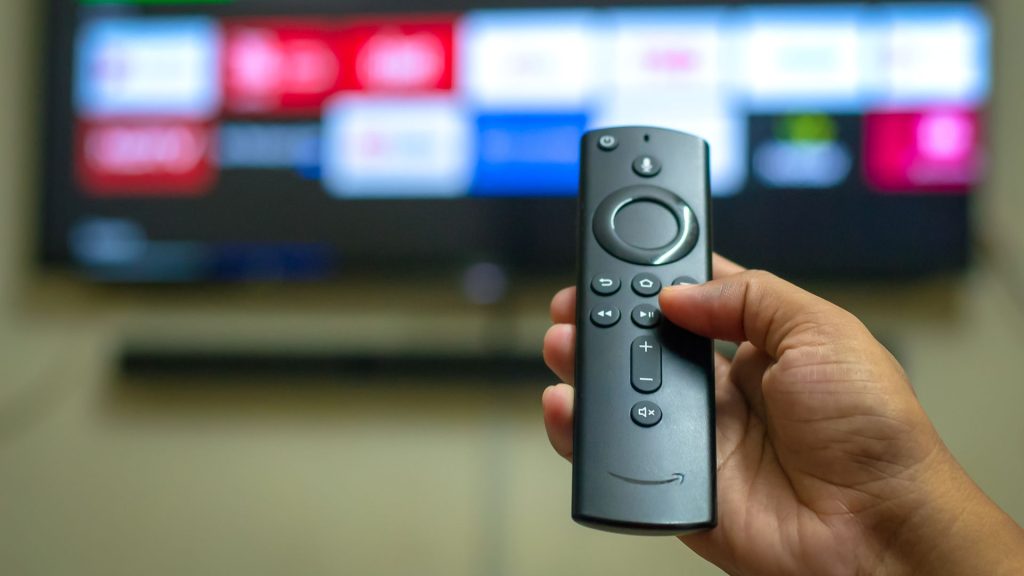
If your Amazon Fire TV Stick takes seconds to respond to every remote click or stutters while scrolling through the home screen, you do not necessarily need to purchase a new streaming device. System slowdowns often stem from resource-heavy background features enabled by default on your home interface rather than actual hardware degradation.
This guide explains how disabling automated media previews on Amazon Fire TV devices immediately frees up processing resources and memory. By navigating to system settings and turning off video and audio autoplay under the Featured Content menu, users can resolve interface sluggishness, reduce background internet bandwidth consumption, and restore snappy navigation across all Fire TV models.
Why Home Screen Autoplay Slows Down Fire TV Devices
The Fire TV home screen is configured to play video and audio previews automatically as you highlight featured movies and television shows. These media clips begin buffering and rendering before you select a title, creating an unnecessary load on the system.
Because entry-level and compact streaming sticks have limited memory and processing power, playing video in the background monopolizes hardware resources. This resource competition causes input delay, frame drops, and frustrating navigation lag. Additionally, background previews consume network bandwidth continuously even when you are simply browsing for something to watch.
How to Turn Off Fire TV Autoplay in 3 Steps
Disabling background previews eliminates extra resource usage and instantly speeds up overall UI responsiveness. Follow these simple steps using your remote control:
- Press the Home button on your remote to navigate to the primary dashboard.
- Go to Settings, select Preferences, and click on Featured Content.
- Toggle off both Allow Video Autoplay and Allow Audio Autoplay.
Once disabled, return to the home screen and scroll through your apps. You will notice immediate performance gains, faster tile loading, and significantly smoother remote responsiveness.
Fire TV Speed Optimization Methods
| Optimization Method | Primary Benefit | How to Execute |
|---|---|---|
| Disable Autoplay Previews | Frees up RAM and CPU usage during UI navigation | Settings > Preferences > Featured Content > Turn Off Autoplay |
| Remote Soft Reset | Clears temporary software glitches without data loss | Hold Select + Play/Pause simultaneously for 5 seconds |
| Hardware Power Cycle | Resets hardware cache and network connection | Unplug power adapter for 10 seconds, then reconnect |
| Firmware Update Check | Patches operating system bugs and performance bottlenecks | Settings > My Fire TV > About > Check for Updates |
Additional Troubleshooting Steps for Fire Stick Lag
If turning off media autoplay previews does not completely eliminate performance lag, executing a soft restart often clears remaining background cache glitches. Press and hold the Select and Play/Pause buttons on your remote control simultaneously until the restart message appears.
For persistent slowness, perform a full hardware power cycle. Disconnect the power adapter from the wall outlet or Fire Stick port, wait 10 seconds, and plug it back in. Finally, check for pending operating system updates under your system settings to ensure outdated firmware is not causing system instability.
Frequently Asked Questions
Why does turning off video autoplay make my Fire Stick faster?
Video autoplay forces your device to continuously stream and render high-definition video clips while you browse. Disabling this setting releases system RAM and processor bandwidth, dedicating full hardware capacity to basic user interface performance.
Will turning off autoplay affect playback inside apps like Netflix or Prime Video?
No, disabling autoplay only stops promotional video and audio previews on the main Fire TV home screen. It does not alter your streaming quality, app functionality, or playback settings inside individual streaming applications.
What should I do if my Fire TV Stick is still slow after changing this setting?
Try performing a soft reboot by holding the Select and Play/Pause remote buttons together, or unplug the unit from power for 10 seconds. You should also verify that your device has installed the latest software update.