
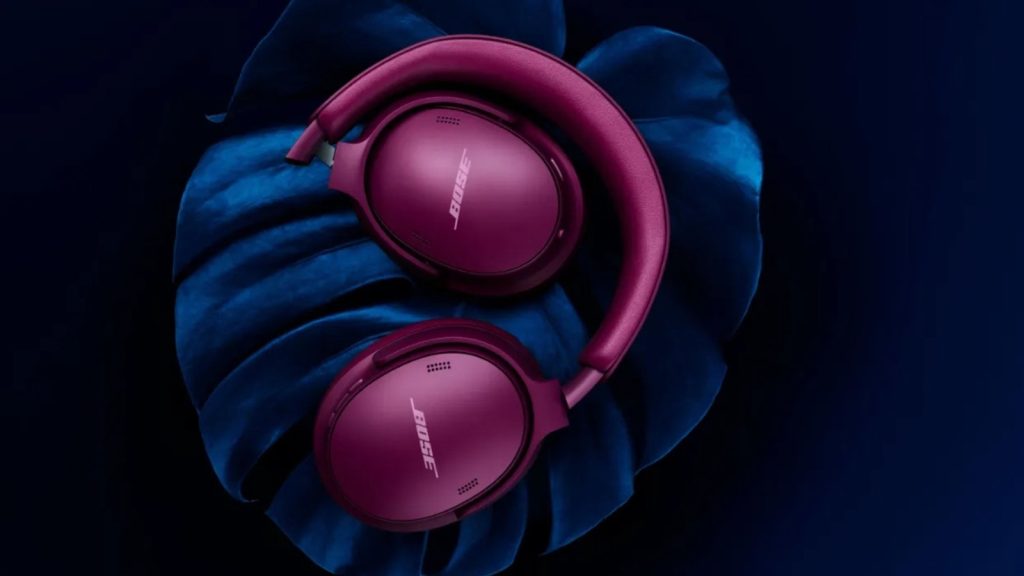
High-end wireless audio gear like Bose QuietComfort headphones and earbuds generally offer stellar active noise cancellation and crisp sound, but technical glitches, pairing freezes, or unresponsive buttons can occasionally interrupt your listening experience. Knowing how to correctly cycle power or perform a hardware reset can quickly restore full functionality without unnecessary downtime.
This guide details essential troubleshooting procedures for Bose over-ear headphones and earbuds, ranging from basic power cycling to hardware reboots and full factory restores. Designed for models like the QuietComfort Ultra, NC 700, and QC35, these steps clear temporary software bugs, resolve connection failures, and return hardware to optimal operating conditions.
| Troubleshooting Method | Primary Purpose | Impact on Saved Data | Recommended Usage Scenario |
|---|---|---|---|
| Power Cycle | Clears short-term RAM bugs and system lag | None (Keeps settings & pairings) | Minor audio stuttering, small connection delays, or soft glitches |
| Soft Reset (Reboot) | Unfreezes system hardware and non-responsive buttons | None (Keeps settings & pairings) | Device completely frozen, charging indicators failing, unresponsive control buttons |
| Factory Restore | Reverts internal firmware to original out-of-box defaults | Erases all paired devices and custom preferences | Persistent Bluetooth pairing failures, app synchronization errors, or preparing for resale |
How to Turn Off and Power Cycle Bose Headphones
Before attempting advanced resets, perform a basic power cycle. Shutting down the hardware for 30 to 60 seconds clears temporary memory caches while retaining custom equalizer settings and paired device records.
For older over-ear models, such as the Bose Noise Cancelling Headphones 700, brief pressure on the Power/Bluetooth button turns off the unit. Devices like the Bose QuietComfort 35 utilize a dedicated physical slide switch that must be moved to the off position. On newer flagship hardware, including the Bose QuietComfort Ultra Headphones, press and hold the Power/Bluetooth control until the power-down chime plays or the indicator LED shuts off.
If using Bose wireless earbuds, place both units inside the dedicated charging case and close the lid completely. Wait at least 30 seconds before removing the earbuds or powering the headphones back on. If connection issues persist after turning the hardware back on, toggle your host device’s Bluetooth setting off and on to re-establish a clean signal.
How to Reboot (Soft Reset) Bose Audio Devices
If your device fails to respond to button presses or will not enter pairing mode, a soft reset (reboot) is the next step. Unlike a factory restore, rebooting re-initializes hardware operations without deleting custom settings or Bluetooth pairing memory.
Rebooting Bose Over-Ear Headphones
- Open your host device’s Bluetooth menu and delete your Bose headphones from the saved connections list.
- Unplug all audio cables and USB charging cords from the headset.
- Plug the charging cable into an active USB power adapter or powered-on computer, but do not attach the other end to your headphones yet.
- Press and hold the Power/Bluetooth button directly on the headphone earcup.
- While continuously holding the button, connect the charging cable to the port on the earcup (left earcup on QuietComfort Ultra models; right earcup on standard QuietComfort models). The battery LED will flash twice.
- Maintain pressure on the button for a few seconds after connecting, then release it to complete the hardware reboot.
Rebooting Bose QuietComfort Ultra Earbuds
- Place both earbuds securely into the charging case, confirming that the charging status LED illuminates.
- Close the charging case lid firmly.
- Connect the case to an active USB wall charger or computer port using the USB-C cable.
- Press and hold the setup button located on the back of the charging case for approximately 30 seconds until the status indicator light switches off completely.
How to Perform a Full Factory Reset (Restore)
When a device experiences severe firmware corruption or refuses to pair with any source, performing a full factory restore becomes necessary. Restoring reverts the hardware to its original factory configuration, wiping all Bluetooth paired list entries, custom button reassignments, and personalized sound profiles.
Restoring Bose QuietComfort Ultra Headphones
- Remove the headphones from the Bluetooth settings menu on all previously paired host devices.
- Open the official Bose app on your mobile device and remove the headphones from your registered account.
- Press and hold both the Power/Bluetooth button and the Multi-Function button simultaneously until the status light begins flashing amber for five seconds.
- Continue holding both buttons down for a total of 15 seconds until the status LED illuminates solid white.
- Release the buttons. The status light will begin pulsing blue once the restore process finishes, confirming that the unit has returned to Bluetooth pairing mode.
Restoring Bose QuietComfort Ultra Earbuds
- Unpair the earbuds from your mobile device’s Bluetooth settings and remove them from your Bose account profile within the mobile app.
- Place both earbuds inside the charging case and leave the case lid wide open.
- Press and hold the button on the back of the charging case for 25 seconds until the status light blinks white twice, pulses blue, and turns off.
- Repeat the previous button-holding step two additional times (for a total of three executions). After the third cycle, the status light will flash amber for three seconds, indicating that the full factory reset has initialized.
- Wait for the LED to pulse blue, signaling that the earbuds are fully restored and ready for fresh setup.
Frequently Asked Questions
Will factory resetting Bose headphones erase saved Bluetooth devices?
Yes. A factory restore completely wipes all saved Bluetooth connection records, custom equalizer profiles, and personalized settings. A basic power cycle or soft reset (reboot) should be used instead if you wish to retain your saved paired devices.
Why are my Bose headphones completely unresponsive to button inputs?
Unresponsiveness is typically caused by a frozen firmware state or an active charging lockout mode. Connecting the headphones to a live power source while executing a soft reset clears system lockups without erasing user data.
What should I do if my Bose model lacks a native factory restore option?
Certain legacy Bose headphone models only support basic power cycles and soft hardware reboots. If your specific model lacks a manual restore sequence and continues to experience severe operation faults, consult the Bose Help Center or contact customer support for further assistance.