
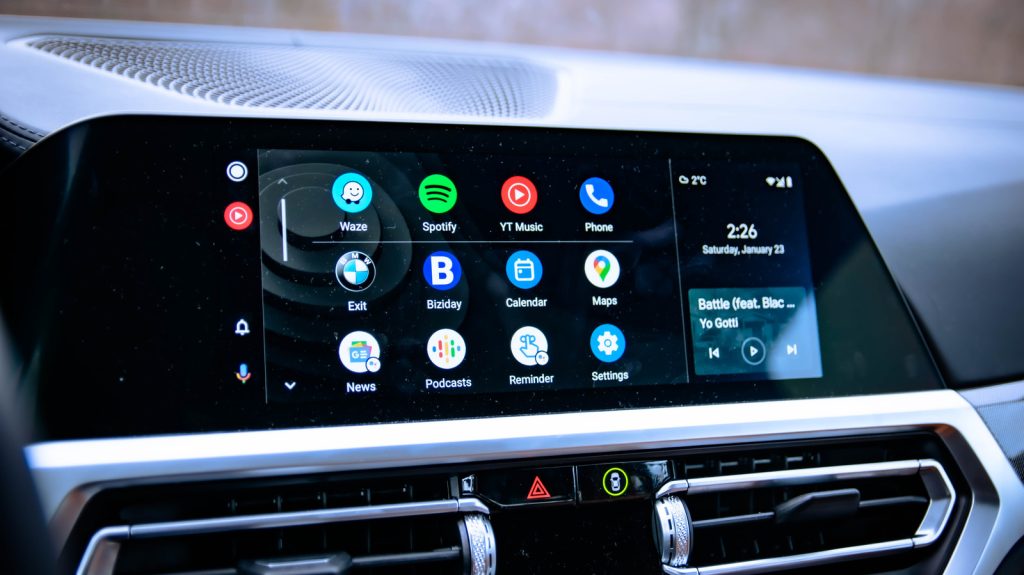
Android Auto bridges the gap between your smartphone and your vehicle’s infotainment system, streamlining access to navigation, calls, and audio. However, relying purely on default configurations often leads to unnecessary battery drain, signal dropouts, and driving distractions.
This guide highlights five frequent Android Auto configuration blunders—including over-reliance on wireless connections, unoptimized lock screen settings, and missing offline maps—and details practical setting adjustments to optimize system stability, driving safety, and overall daily convenience.
| Setting / Feature | Common Mistake | Recommended Solution | Primary Benefit |
|---|---|---|---|
| Connection Mode | Relying solely on wireless connectivity | Plug in using a quality USB cable for longer trips | Prevents battery drain and avoids lag or connection dropouts |
| Lock Screen Startup | Unlocking the phone manually every drive | Enable “Start Android Auto while locked” | Instantly launches dashboard apps without unlocking device |
| Navigation Data | Depending entirely on live mobile signal | Download offline map regions in Google Maps | Maintains turn-by-turn routing during signal loss |
| Alert Management | Allowing unfiltered alerts to clutter the display | Customize messaging toggles and notification chimes | Reduces dangerous audio and visual driving distractions |
| Media Playback | Manually opening apps and hitting play each time | Enable “Start music automatically” under Startup | Resumes audio playback as soon as the vehicle starts |
Relying Exclusively on Wireless Connections
Modern vehicles frequently offer wireless Android Auto, allowing you to project your smartphone without pulling it out of your pocket. While convenient, running Android Auto wirelessly places heavy demands on your phone’s processor and battery. Wireless data transfer generates extra heat and can occasionally trigger random dropouts or interface lag.
Plugging your smartphone in via a reliable USB cable solves these performance issues by providing continuous power while stabilizing the data connection. Wireless connections remain ideal for brief trips around town, but wired setups are far better suited for long commutes and navigation-heavy travel. Always use a high-quality cable from a trusted manufacturer, as cheap cables often fail to sustain stable connections.
Unlocking Your Smartphone Before Every Trip
Many drivers assume they must unlock their phone screen every single time they enter their car to initiate Android Auto. Unlocking your device manually while trying to start your drive adds unnecessary friction to your routine and wastes time.
You can bypass this requirement by navigating to your Android Auto settings menu on your phone. Under the Startup section, enable the option labeled Start Android Auto while locked. Once active, your car display will launch your maps, music, and apps automatically upon connection, keeping your handset secured in your pocket or mount.
Driving Without Offline Maps Pre-Downloaded
Using Google Maps or alternative navigation tools through your car’s display is one of Android Auto’s most valuable features. However, live navigation constantly consumes cellular data to stream map graphics and routing updates. If your route passes through rural areas or cellular dead zones, active navigation can fail entirely.
To avoid getting stranded without guidance, download offline maps of your local area or upcoming travel destinations beforehand. Google Maps automatically transitions to downloaded map files whenever network service drops out. While offline maps lack live traffic updates, they ensure continuous turn-by-turn directions regardless of signal strength.
Overlooking Custom Notification Settings
Handling incoming text messages and calls safely is a core focus of Android Auto, but unmanaged notifications can become a hazardous distraction. High-volume group chats and frequent app alerts pinging through your car speakers pull your focus away from the road.
You can fine-tune these alerts within the Messaging section of the Android Auto settings menu. Four specific toggles allow you to enable or disable message notifications entirely, silence group chat alerts, toggle single-line message previews, and mute notification chimes. Tailoring these controls ensures you stay informed without compromising driving safety.
Disabling Automatic Media Playback Resume
Stopping for fuel or running multiple errands often forces drivers to manually re-open music or podcast apps every time they restart their vehicle. Re-navigating media menus after every quick stop becomes tedious very quickly.
Android Auto includes a dedicated setting designed to eliminate this hassle. In your smartphone’s Android Auto settings, locate the Startup section and toggle on Start music automatically. With this setting enabled, your system instantly resumes your previous audio stream the moment your phone connects to the car.
Frequently Asked Questions
Is a wired connection always better than wireless Android Auto?
Wired connections offer better overall stability, lower input latency, and steady battery charging. While wireless connections work fine for brief drives, wired connections prevent battery depletion and overheating during extended navigation use.
Is it safe to allow Android Auto to start while my phone is locked?
Yes, enabling this feature allows your vehicle display to access approved Android Auto applications without granting full access to your personal phone data. If you regularly share your vehicle with secondary drivers, you can toggle this feature off whenever necessary.
Do offline Google Maps update traffic conditions in real time?
No, offline map files strictly store geographic road layouts and turn-by-turn routing instructions. Live traffic updates, road hazard alerts, and dynamic detour suggestions require an active mobile data connection.