
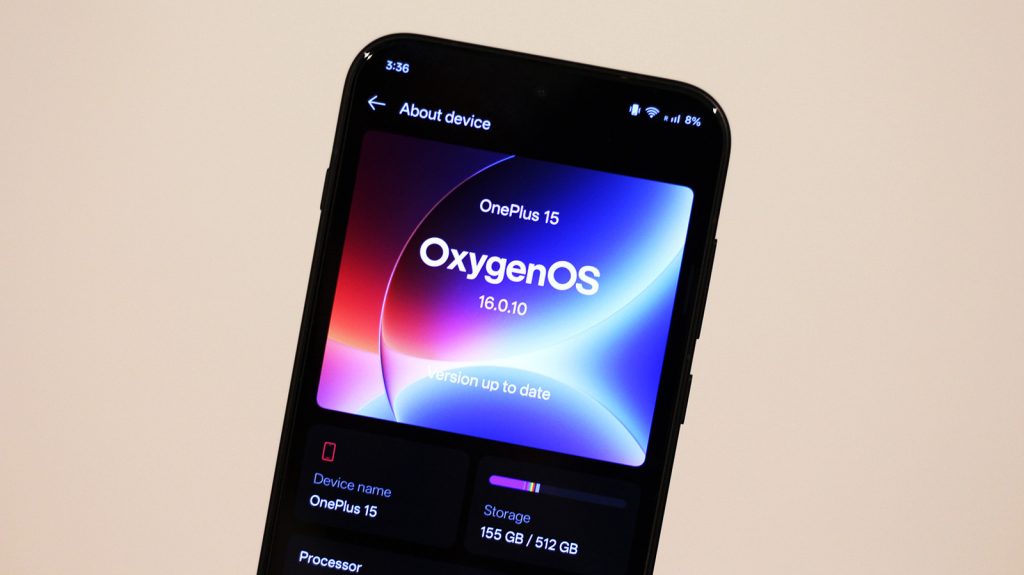
OnePlus devices have long been celebrated for their top-tier specs and rapid charging speeds, but the real key to their daily usability lies within their software. While modern OxygenOS shares a unified codebase with Oppo’s ColorOS, it remains packed with subtle utilities designed to speed up navigation and daily multitasking.
This guide outlines five under-the-radar OxygenOS features available on modern OnePlus smartphones, including OxygenOS 16. It covers Quick Launch fingerprint shortcuts, resizable floating windows, customizable Game Assistant performance tools, screen-off gestures, and productivity aids like Content Portal and Smart Sidebar to help OnePlus users optimize their workflow and device efficiency.
| Feature | Navigation Path | Primary Benefit |
|---|---|---|
| Quick Launch | Settings > Accessibility & convenience > Quick Launch | Launches up to 5 apps or specific actions instantly from the fingerprint sensor. |
| Floating Windows | Recent Apps Menu > Three-dot menu / Swipe up past halfway point | Enables full interactive multitasking without shrinking primary app layout. |
| Game Assistant | Preinstalled App / In-game side swipe menu | Unlocks Pro Gamer performance mode, touch sensitivity, and graphics tweaks. |
| Screen-off Gestures | Settings > Accessibility & convenience > Gestures & motions | Executes system actions, launches apps, or controls media on a locked screen. |
| Content Portal & Smart Sidebar | Settings > Accessibility & convenience | Allows cross-app drag-and-drop file transfers and quick access toolbars. |
1. Quick Launch: Instant Access via Fingerprint Scanner
Most Android users pin their primary communication or camera shortcuts to the home screen dock. However, if your home screen is full, OxygenOS provides a hidden shortcut layer built directly into the display’s biometric reader.
By navigating to Settings > Accessibility & convenience > Quick Launch, you can assign up to five apps or specific app actions to a radial menu around the fingerprint scanner. Holding your thumb down briefly after unlocking opens the menu instantly. Lifting your finger off normally allows standard unlocking without triggering the menu.
Beyond opening standard applications like banking tools or authenticators, Quick Launch supports targeted deep links. You can program a direct action to launch a specific instant message conversation or auto-select a preferred card in Google Wallet.
2. Floating Windows: Advanced Mobile Multitasking
While standard Android multitasking relies heavily on split-screen modes or chat heads, OxygenOS utilizes scalable floating windows. This approach preserves the complete user interface of your primary app without forcing text to wrap awkwardly across half a display.
To convert an active app into a floating window, open the recent apps view, tap the three-dot menu icon, and choose Floating window. Alternatively, drag an active application up from the gesture bar past the middle of the display. Handles at the bottom of the window let you resize the panel while keeping both applications interactive.
3. Game Assistant: Fine-Tuning Performance and Touch Sensitivity
OnePlus flagships feature high-end Snapdragon processors and fast memory chips that comfortably run demanding titles like Genshin Impact. However, the preinstalled Game Assistant software allows deeper control over graphics rendering and thermal behavior.
Within the Game Assistant hub, selecting Performance settings lets users toggle between standard Balanced output and maximum-output Pro Gamer mode. This ensures hardware stays locked at higher clock frequencies during competitive sessions.
Under the Controls panel, players can adjust touch and swipe responsiveness, optimize screen sampling rates via the Ultra touch setting, or enforce hardware-level rendering tricks like MSAA and anisotropic filtering. Swiping in from the left edge during gameplay reveals real-time tools for screen recording and network optimization.
4. Screen-Off Gestures: Touchless Actions on a Locked Display
Screen-off gestures have been a foundational element of OxygenOS since the earliest iterations of the hardware line. Modern versions build upon basic double-tap-to-wake functionality by allowing custom geometric tracings on an inactive screen.
Users can draw a “O” on the dark screen to launch the camera instantly or trace a “V” to turn on the rear LED flashlight. Media playback can also be managed blindly: draw a greater-than (>) or less-than (<) sign to switch music tracks, or swipe down with two fingers to pause playback.
Configured in Settings > Accessibility & convenience > Gestures & motions > Screen-off gestures, additional shapes like inverted V, M, or W can be linked to speed-dial contacts or custom applications. Integrated pocket mistouch prevention keeps these sensors inactive while the device is in a bag or pocket.
5. Content Portal and Smart Sidebar: Cross-App Productivity Tools
For users operating on OxygenOS 16, Content Portal simplifies cross-application asset sharing. Instead of saving an image to local storage before attaching it inside a messaging app, users can drag text or visual media directly into the temporary Content Portal zone at the bottom of the screen for immediate insertion into another app.
This functionality is supported by Smart Sidebar, located in the same accessibility menu. Similar to floating panel shortcuts, Smart Sidebar hosts user-assigned app shortcuts alongside a dedicated File Dock—a temporary shelf for staging images, PDFs, and text clips.
To explore additional system utilities, opening the stock Phone Manager app and choosing the Utilities tab provides extra maintenance tools, including an audio-based speaker cleaner to eject moisture and debris.
Frequently Asked Questions
How do I enable Quick Launch on OxygenOS?
You can activate Quick Launch by navigating to Settings > Accessibility & convenience > Quick Launch. Once enabled, hold your finger down briefly on the fingerprint sensor during unlock to access your assigned shortcuts.
Do screen-off gestures consume extra battery power?
Screen-off gestures use a negligible amount of battery power because modern OLED displays and low-power co-processors are optimized to register digitizer touch inputs while the main CPU stays asleep.
What is the difference between Content Portal and File Dock in OxygenOS 16?
Content Portal allows real-time dragging and dropping of text and images directly between active applications, whereas File Dock acts as a temporary floating shelf where you can store multiple files to share across apps at a later time.