
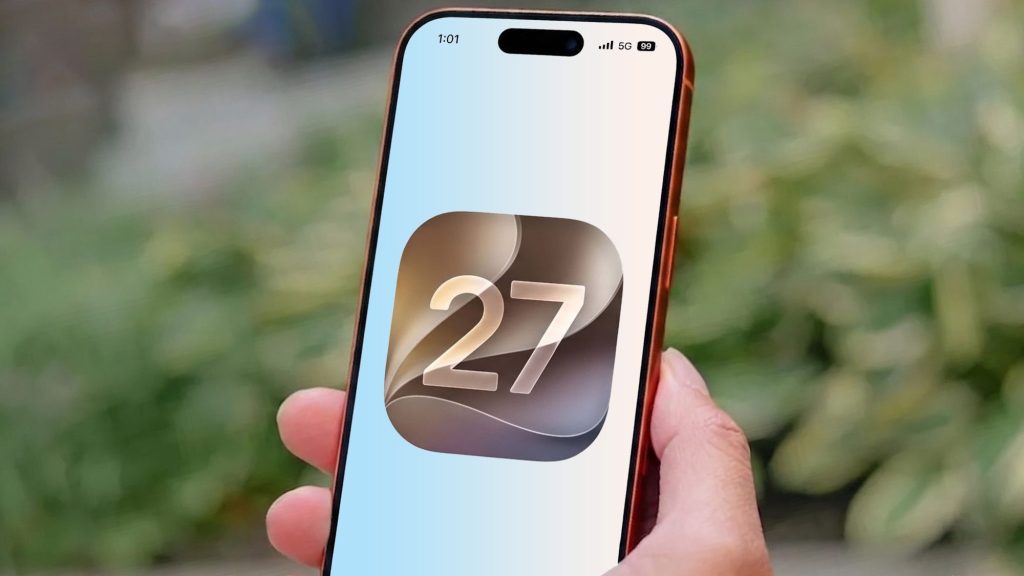
For years, the iPhone Shortcuts app intimidated users with its complex conditional logic and multi-step workflow building. Apple has simplified this process by allowing users to automate routine tasks using basic text descriptions.
This guide explains how iOS 27 leverages Apple Intelligence to create iPhone automations through plain language text prompts. By using the new Describe a Shortcut feature available on supported devices like the iPhone 15 Pro, users can generate custom system workflows instantly without manually configuring logic blocks or variables.
Manual Shortcuts vs. Apple Intelligence Automation
Building automated tasks on an iPhone used to require patience and visual programming skills. The table below outlines how the updated system compares to traditional workflow creation.
| Feature | Traditional Shortcuts Builder | iOS 27 AI Prompt System |
|---|---|---|
| Creation Method | Manual action selection and variable linking | Natural language text descriptions |
| Setup Difficulty | Requires understanding logic rules | No prior technical experience needed |
| Creation Speed | Several minutes to set up complex flows | Generated automatically in seconds |
| Device Compatibility | Standard iOS devices | iPhone 15 Pro or newer running iOS 27 |
Prerequisites for Using AI Shortcuts
Before testing the prompt-based automation builder, your device must meet specific hardware and software criteria. You will need an iPhone 15 Pro or a newer model running the iOS 27 beta build.
Always protect your data before installing pre-release software. Navigate to Settings, select Your Name, tap iCloud, choose iCloud Backup, and press Back Up Now.
First-time beta testers must register for a free developer account to gain access. Once approved and off the waiting list, open Settings, go to General, tap Software Update, select Beta Updates, and pick the iOS 27 Developer Beta.
How to Generate Custom Automations with Text Prompts
The updated workflow creator replaces tedious action menus with an intuitive text prompt field. Constructing a complete automation now requires only a few clear sentences.
- Open the App: Launch the Shortcuts application and tap the New Shortcut button located at the bottom of your screen.
- Enter Your Prompt: Tap the central text box asking what you want your phone to do, then type your request in plain English.
- Generate the Action: Tap the arrow icon. Apple Intelligence evaluates your prompt and constructs the exact sequence of system triggers automatically.
You can make your descriptions as simple or as detailed as needed. For instance, prompting “At 10:00 PM, turn on ‘Do Not Disturb’, set the screen brightness to 15%, and turn on Dark Mode” configures all three settings into a single trigger. Similar prompts can automate morning routines, manage focus modes, or launch specific app clusters during work hours.
Frequently Asked Questions
Which iPhone models support the Describe a Shortcut feature?
You need an iPhone 15 Pro or a newer device capable of supporting Apple Intelligence, along with the iOS 27 system update.
Do I need to learn conditional logic to build complex shortcuts?
No. Apple Intelligence handles logic scripts automatically based on the detail provided in your natural language text prompt.
Can I edit a shortcut after AI generates it?
Yes. Once Apple Intelligence builds the requested workflow, you can review, adjust, or manually tweak individual actions before saving.