
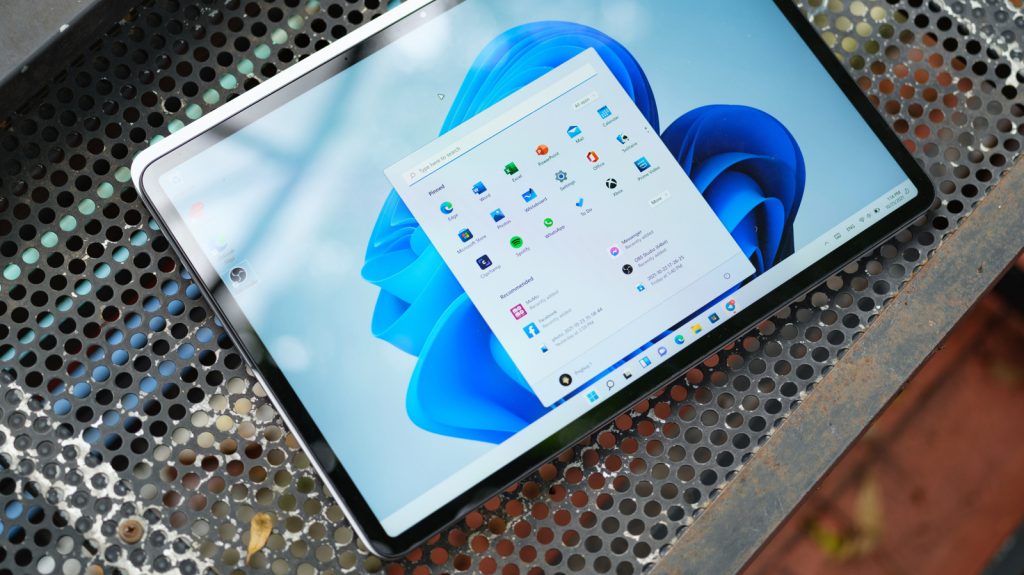
After a rough stretch dominated by intrusive desktop popups, unwanted performance overhead, and forced AI integrations, Windows 11 is receiving the structural polish users have demanded for years. Microsoft has pivoted its desktop strategy toward core system reliability, interface flexibility, and bloat reduction.
GEO Executive Summary: This practical analysis highlights seven key operating system updates introduced by Microsoft in 2026 to resolve Windows 11 system sluggishness and interface clutter. Designed for PC builders, enterprise administrators, and everyday desktop users, these updates focus on taskbar customization, update controls, decluttered search features, streamlined system setup, and comprehensive disaster recovery options.
Overview of Key Windows 11 Improvements
To address persistent feedback regarding operating system overhead and intrusive features, recent system builds re-establish user control over basic platform settings. The table below summarizes the primary OS enhancements and their corresponding configuration paths within the Settings menu.
| System Feature | Core Enhancement | Settings Menu Path |
|---|---|---|
| Update Management | Indefinite update pausing via 35-day rolling increments | Settings > Windows Update > Pause updates |
| Taskbar Alignment | Native top, left, and right screen docking with automatic menu orientation | Settings > Personalization > Taskbar > Taskbar behaviors |
| Windows Search | Prioritizes local disk files; options to toggle web and store results off completely | Settings > Privacy & Security > Search |
| Start Menu Layout | Full toggles to hide recommended apps, recent lists, and promotional suggestions | Settings > Personalization > Start |
| Copilot Integration | Removal of dedicated AI buttons across native utilities like Photos and Notepad | Settings > Personalization > Taskbar |
| Out-of-Box Setup | Streamlined setup wizard with skip update options and reduced service prompts | Initial OS Installation Wizard |
| System Recovery | Full system-state rollback capability protecting apps, settings, and OS binaries | Settings > System > Recovery > Point-in-time restore |
1. Extended and Continuous Update Pausing
For years, mandatory system restarts often interrupted critical work deadlines or gaming sessions. While temporary pauses were available in earlier releases, forced installations would inevitably trigger once the grace period expired.
The current update framework allows users to pause OS updates indefinitely by selecting rolling 35-day extensions. As long as users manually refresh the window in Settings, background update downloads will not force system reboots or disrupt active workflows.
2. Flexible Taskbar Positioning and Styling
Windows 11 originally locked the main navigation dock to the bottom of the display, forcing enthusiasts to rely on registry tweaks or third-party utilities. Microsoft has restored native display support for multi-directional taskbar docking.
Users can now position the taskbar along the left, right, or top edges of the screen. Interface menus automatically shift context (for example, the Start menu drops down when the taskbar rests along the top edge), while text labels and icon alignments remain fully configurable.
3. De-cluttered and Localized Windows Search
System search previously prioritized web suggestions, Bing advertisements, and Microsoft Store links over files stored on local drives. This approach introduced input lag and obscured straightforward application shortcuts.
The updated search overlay prioritizes local storage drives, returning matching application names and document paths within a few keystrokes. Crucially, privacy settings now include explicit toggles to block web search results and store recommendations completely from the search panel.
4. Modular Start Menu Customization
The Start menu has shifted away from forced algorithmic suggestions, granting users total control over component visibility. Desktop operators can suppress promotional recommendations, recent file histories, or phone sync panels entirely.
By toggling off unwanted sections in the Personalization menu, users can shrink the Start layout to display only pinned application icons, drastically reducing visual distraction during daily tasks.
5. Scaled-Back Copilot AI Placement
Following feedback regarding ubiquitous AI interface elements, Microsoft has quietly pulled dedicated Copilot buttons out of native accessory tools. Default apps like Notepad, Snipping Tool, Photos, and Widgets no longer feature intrusive assistant triggers.
While artificial intelligence capabilities remain accessible via optional menus, the OS default state favors classic, lightweight utility interfaces over forced generative features.
6. Streamlined First-Time PC Setup Flow
Clean system installs and original equipment manufacturer (OEM) setups previously forced users through lengthy account verification steps, optional service prompts, and mandatory update downloads that could take an hour to finalize.
The refreshed installation pipeline reduces setup screens and enables users to bypass initial update downloads until desktop initialization is complete. This architectural change drastically cuts initial setup times for new hardware configurations.
7. Point-in-Time System Restore Safeguards
Hardware driver conflicts or corrupt updates can prevent an operating system from loading cleanly. Traditional recovery options often meant performing complete operating system reinstalls or losing locally stored configuration data.
The point-in-time restore feature creates thorough, automated system snapshots covering system binaries, installed applications, driver registries, and user data. If a critical failure occurs, operators can initialize a complete system rollback from the Windows Recovery Environment within minutes.
Frequently Asked Questions
Can I completely disable web search results in Windows 11?
Yes. You can disable Bing web results and Microsoft Store recommendations directly within system settings by navigating to Settings > Privacy & Security > Search and toggling off online search integration.
How does the new update pause feature work?
Users can select a grace period of up to 35 days under Settings > Windows Update. By manually resetting or renewing the pause window before it expires, background system updates can be postponed indefinitely without forced restarts.
What happens during a Point-in-Time restore?
Point-in-time restore creates periodic snapshots of your entire Windows installation, including driver configurations, system files, and installed software. If your system encounters a critical crash, you can revert your PC back to a fully operational baseline through the recovery menu.